
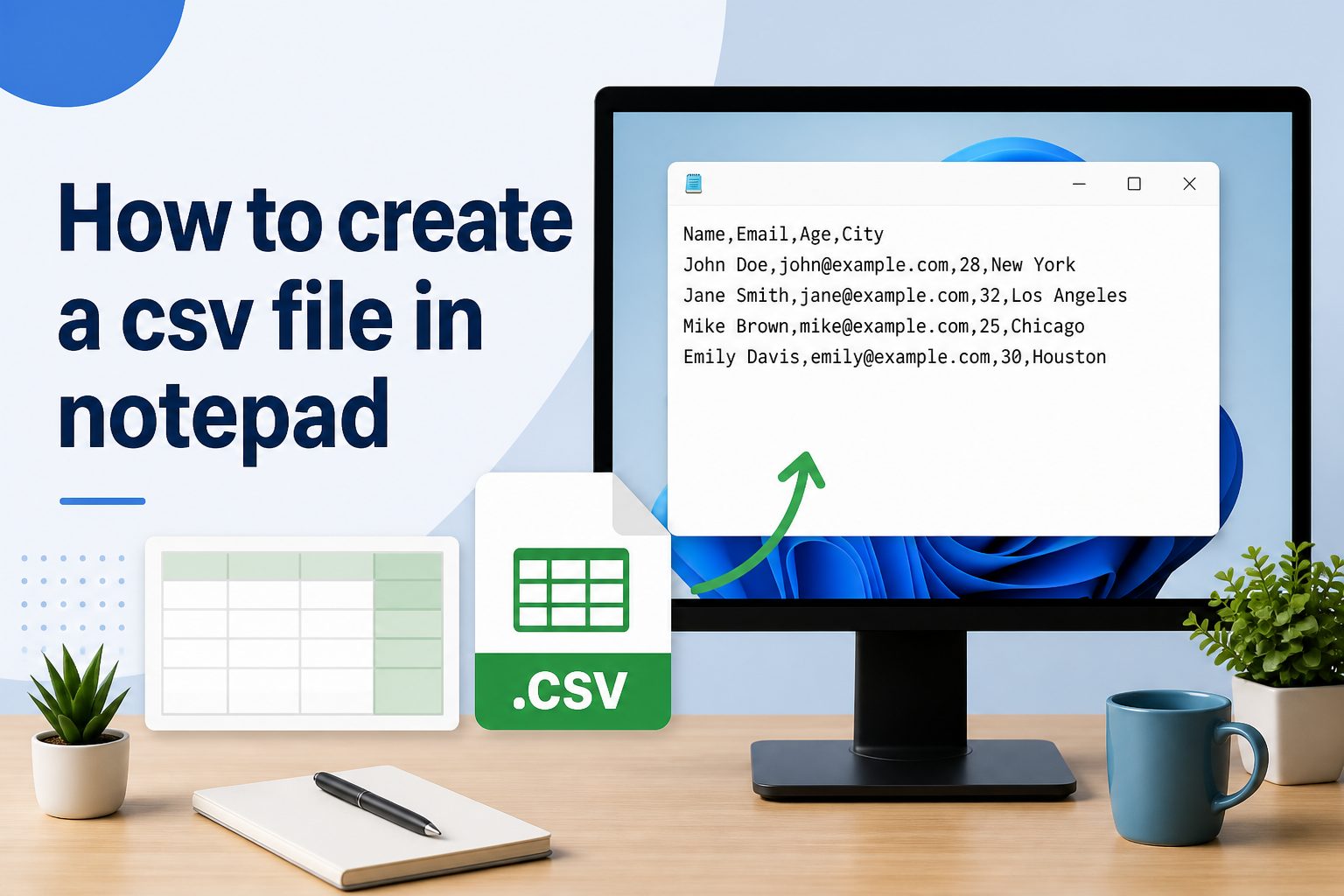
Learning how to create a csv file in notepad is useful when you need a simple way to organize plain text data into rows and columns. A CSV file, short for comma-separated values, can store names, numbers, email addresses, product details, and many other types of structured information. Because Notepad is basic and available on most Windows computers, it is often the fastest tool for making a small CSV file without opening spreadsheet software. This guide explains what a CSV file is, why people use it, how the format works, and exactly how to make one in Notepad step by step. You will also see examples, common mistakes, practical tips, and answers to frequent questions. By the end, you should be able to create a clean CSV file in Notepad, save it with the correct extension, and avoid the formatting problems that often make CSV files fail when imported into another program.
What A CSV File Means
Before you create a CSV file in Notepad, it helps to know how this file type works and why the format is so widely used.
1. CSV Stores Data As Plain Text
A CSV file is a plain text file. That means it does not contain special spreadsheet formatting, colors, formulas, or visual layouts. Instead, it stores raw data in a simple text structure. Each line usually represents one row, and commas separate the values in that row.
2. Each Line Usually Represents One Record
When you open a CSV file in Notepad, every new line typically stands for one record or entry. For example, one line could hold information for one customer, one product, or one order. This row-based format makes CSV files easy to export, import, and share between systems.
3. Commas Separate The Values
The most common CSV format uses commas between fields. If you are storing first name, last name, and email address, those values would appear on the same line with commas between them. Programs reading the file use those commas to split the data into separate columns.
4. The First Row Can Be A Header Row
Many CSV files begin with a header row. This first line names the columns, such as Name, Email, Phone, or Price. Headers are not required in every case, but they make the file easier to read and often help when importing data into another application.
5. CSV Works Across Many Programs
One reason CSV is popular is its compatibility. Spreadsheet tools, databases, contact managers, inventory systems, and many web applications can read CSV files. Because the format is simple, it works as a bridge between different tools that may not support the same native file types.
6. CSV Is Simple But Still Needs Accuracy
Even though CSV looks easy, small mistakes can cause problems. A missing comma, an extra space, or an incorrect file extension may lead to broken columns or failed imports. That is why learning the correct way to create a CSV file in Notepad is worth the effort.
Why Create CSV In Notepad
Notepad is not advanced, but it can be a practical choice when you need quick manual control over a CSV file.
- Fast For Small Jobs: If you only need a short list of rows, Notepad can be quicker than opening a spreadsheet program.
- Easy To See Raw Structure: You can view the exact commas, quotation marks, and line breaks without hidden formatting.
- Good For Troubleshooting: When a CSV import fails, opening the file in Notepad often reveals misplaced separators or broken rows.
- Useful On Basic Systems: Notepad is commonly available on Windows, so you can create a CSV file without extra software.
- Better For Learning The Format: Writing CSV data manually helps you understand how rows and columns are actually stored.
Steps To Create A CSV File In Notepad
These steps show the basic process for making a working CSV file in Notepad from start to finish.
- Open Notepad: Start with a blank text file so you can enter your data manually without any automatic formatting.
- Plan Your Columns: Decide what information each row will contain, such as name, phone number, email, or price.
- Type A Header Row: Add column names on the first line, separating each heading with a comma.
- Enter Your Data Rows: Write one record per line and keep the same column order for every row.
- Use Quotes When Needed: If a value contains a comma, place that value inside quotation marks so it stays in one field.
- Choose Save As: Save the file manually instead of using the default text name so you can control the extension.
- Name The File With .csv: Use a name like contacts.csv and select a plain text encoding that suits your target system.
CSV Structure Rules In Notepad
CSV files look simple, but a few formatting rules matter if you want the file to open correctly in other programs.
1. Keep The Same Number Of Fields In Every Row
Each row should follow the same pattern. If the header has four columns, every data row should also contain four values in the same order. If one row has fewer or extra fields, the data can shift into the wrong columns when imported or opened elsewhere.
2. Use Commas Consistently
Do not switch between commas and other separators unless the target program specifically expects something different. A standard CSV file uses commas throughout the file. Mixing separators creates confusion and often leads to data being split incorrectly across multiple columns or combined into one large text field.
3. Put Text With Commas Inside Quotes
If a value contains a comma, such as a company name or address, place that full value inside quotation marks. Without quotes, the comma inside the text will be treated like a separator. That can break the row and move part of the value into the next column by mistake.
4. Avoid Random Extra Spaces
Spaces are not always harmful, but unnecessary spaces around values can create messy imports and inconsistent data. For example, a field saved as space before a word may not match the same field without that space. Clean formatting makes your CSV file easier to process later.
5. Use One Row Per Line
A CSV file depends on proper line breaks. Every line should represent one complete row of data. If you accidentally insert extra line breaks inside a value, some programs may treat that as a new row. This can make the file look broken when you try to open or import it.
6. Save With The Correct File Extension
The content alone does not make a file a CSV. You must save it with the .csv extension. If you save it as .txt, many programs will treat it as a plain text file instead. Checking the extension is one of the most important final steps.
Examples Of CSV Files In Notepad
Examples make the format easier to understand because they show how CSV files are used in everyday situations.
1. Contact List Example
A simple contact CSV might include columns for first name, last name, email, and phone number. Each person gets one line of data. This kind of file is often used when moving contacts between systems or uploading a list into a mailing tool or customer database.
2. Product Inventory Example
A small business might use a CSV file to store product name, stock keeping unit, price, and quantity. In Notepad, each item appears as one row. This is useful when you need to prepare product data for import into an online store or inventory platform.
3. Student Record Example
A school administrator could create a CSV file with columns for student name, ID number, class, and grade. Because the file is plain text, it can be shared between simple systems that do not use the same software. Accuracy matters because misplaced commas can affect the entire row.
4. Event Guest List Example
For an event, a CSV file might include guest name, company, email, and attendance status. Notepad works well for smaller guest lists when you need direct control over the data. It is especially useful when you want to clean the list before uploading it into event software.
5. Address Book Example
Addresses often show why quotes matter in CSV files. A street address may contain commas, such as a city and state combination. In those cases, the full address field should be enclosed in quotation marks. This keeps the address together instead of splitting it into separate columns unexpectedly.
6. Sales Report Example
A basic sales CSV can include date, order number, customer name, and total amount. This format is common because accounting tools and reporting systems often accept CSV imports. Creating the file in Notepad helps when you need a quick manual report without building a formal spreadsheet first.
Common CSV Mistakes To Avoid
Many CSV problems come from small formatting errors. Avoiding these mistakes can save time and prevent failed uploads or confusing data imports.
1. Saving The File As TXT Instead Of CSV
This is one of the most common errors. A file may contain correct comma-separated data, but if it is saved with a .txt extension, another program may not recognize it as a CSV file. Always verify the file name carefully before finishing the save process.
2. Forgetting Quotes Around Values With Commas
If a field contains a comma and you do not wrap that field in quotation marks, the CSV reader may split one value into two columns. This often happens with addresses, business names, and descriptions. Quoting those fields protects the structure of the row.
3. Using Different Column Orders In Different Rows
Every row should follow the same sequence of values. If one row uses name, email, phone and another row uses phone, name, email, the file may still open, but the data will be unreliable. Consistent column order is essential when the CSV will be imported into another tool.
4. Leaving Empty Commas By Accident
Blank fields are allowed in CSV files, but accidental extra commas can create false empty columns. For example, adding two commas where only one should appear may shift the rest of the row. Review each line carefully so empty fields are intentional and properly placed.
5. Mixing Manual Edits With Careless Copy And Paste
Copying data from websites, documents, or emails can add hidden spaces, odd quotation marks, or inconsistent line breaks. These small issues are easy to miss in Notepad. If you paste information into a CSV file, inspect the row closely before saving it as finished.
6. Ignoring Encoding Problems
If your CSV file includes accents, symbols, or non-English characters, the chosen encoding can matter. A file may look correct in Notepad but display strange characters elsewhere. When working with special characters, test the file in the target program to confirm the text appears correctly.
Best Practices For Creating CSV Files In Notepad
A few practical habits can make your CSV files cleaner, easier to maintain, and less likely to cause problems later.
1. Start With A Clear Header Row
A good header row improves readability and reduces confusion during imports. Use simple column names that clearly describe the data, such as Name, Email, Quantity, or Date. Clear headers also make it easier for someone else to review the file and understand what each column contains.
2. Keep Data Consistent Across All Rows
Consistency matters more than many beginners expect. If one date is written in one style and another date uses a different style, or if phone numbers use mixed formats, the file becomes harder to process. Pick one format for each data type and use it throughout the entire CSV.
3. Use Short Test Files First
Before building a large CSV manually, create a small test version with just a few rows. Open or import that test file into the target program to confirm the structure works. This reduces the chance of spending time on a long file that later fails because of one formatting mistake.
4. Review The File In A Spreadsheet Tool
Even if you create the file in Notepad, it helps to open the finished CSV in a spreadsheet application afterward. This gives you a quick view of whether the columns line up correctly. If values appear in the wrong places, you can return to Notepad and fix the raw text.
5. Keep A Backup Of The Original Text
Manual editing always carries some risk, especially when you need to make later changes. Saving a backup copy of the original CSV text can protect you from accidental edits or import problems. A backup is especially useful when the file contains important business, customer, or reporting data.
6. Validate Before Sharing Or Importing
Do not assume the file is correct just because it looks simple. Scan for missing commas, mismatched quotes, incomplete rows, and wrong extensions. A short final review can prevent errors that would otherwise spread into another system and take longer to fix later.
When To Use CSV Files From Notepad
Notepad is not the best tool for every data task, but it can be very effective in the right situations.
It works well when you need to create a small file quickly and you already know the column structure. For a short contact list or a few rows of inventory data, the simplicity of Notepad can save time.
It is also useful when you want full control over the raw text. Spreadsheet programs may hide formatting details, while Notepad shows every comma, quote, and line break exactly as they appear in the file.
Notepad is a good option for troubleshooting broken CSV files. If a file is not importing correctly, opening it in plain text often reveals the problem faster than viewing it in a formatted grid.
However, it becomes less practical for large files with many columns or hundreds of rows. In those cases, spreadsheet software is usually easier for editing, sorting, and checking accuracy.
The best use case for Notepad is simple, direct CSV work where precision matters more than visual convenience. For basic manual creation, it remains a reliable and accessible option.
Frequently Asked Questions
Can I Create A CSV File In Notepad Without Excel
Yes, you can create a CSV file in Notepad without using Excel or any spreadsheet tool. You only need to type your data in rows, separate each value with a comma, and save the file with the .csv extension. This works well for small and simple files.
What Should I Type In The First Row Of A CSV File
The first row often contains column headers such as Name, Email, Phone, or Price. These labels help identify the meaning of each column and make the file easier to import and review. Headers are common, though some systems may accept CSV files without them.
Why Does My CSV File Open As A Text File
This usually happens because the file was saved with the wrong extension, such as .txt instead of .csv. In some cases, file associations on the computer may also cause a CSV file to open in a text editor by default, even when the extension is correct.
Do I Need Quotation Marks In Every CSV Field
No, quotation marks are not required for every field. They are mainly needed when a value contains a comma, a line break, or certain special characters that could confuse the file structure. For simple values without commas, quotes are often unnecessary.
Can I Use Notepad For Large CSV Files
You can, but it is usually not the best choice for large files. Notepad is better for small manual edits, quick creation, or troubleshooting. When the file has many rows or columns, a spreadsheet or database tool is usually easier for checking, editing, and managing data accurately.
How Can I Check If My CSV File Is Correct
A practical way to check your file is to open it in a spreadsheet application after saving it from Notepad. If each value appears in the right column, the structure is probably correct. You should also verify the file extension, review commas, and check quotation marks carefully.
Conclusion
Knowing how to create a csv file in notepad gives you a simple way to build structured data without relying on advanced software. The key points are straightforward: keep one row per line, separate fields with commas, use quotes when needed, and save the file with the correct extension.
Once you understand the basic structure, Notepad becomes a useful tool for small CSV tasks, manual edits, and troubleshooting. Careful formatting is what makes the file work, so a short review before saving or importing can make the entire process smoother and more reliable.