
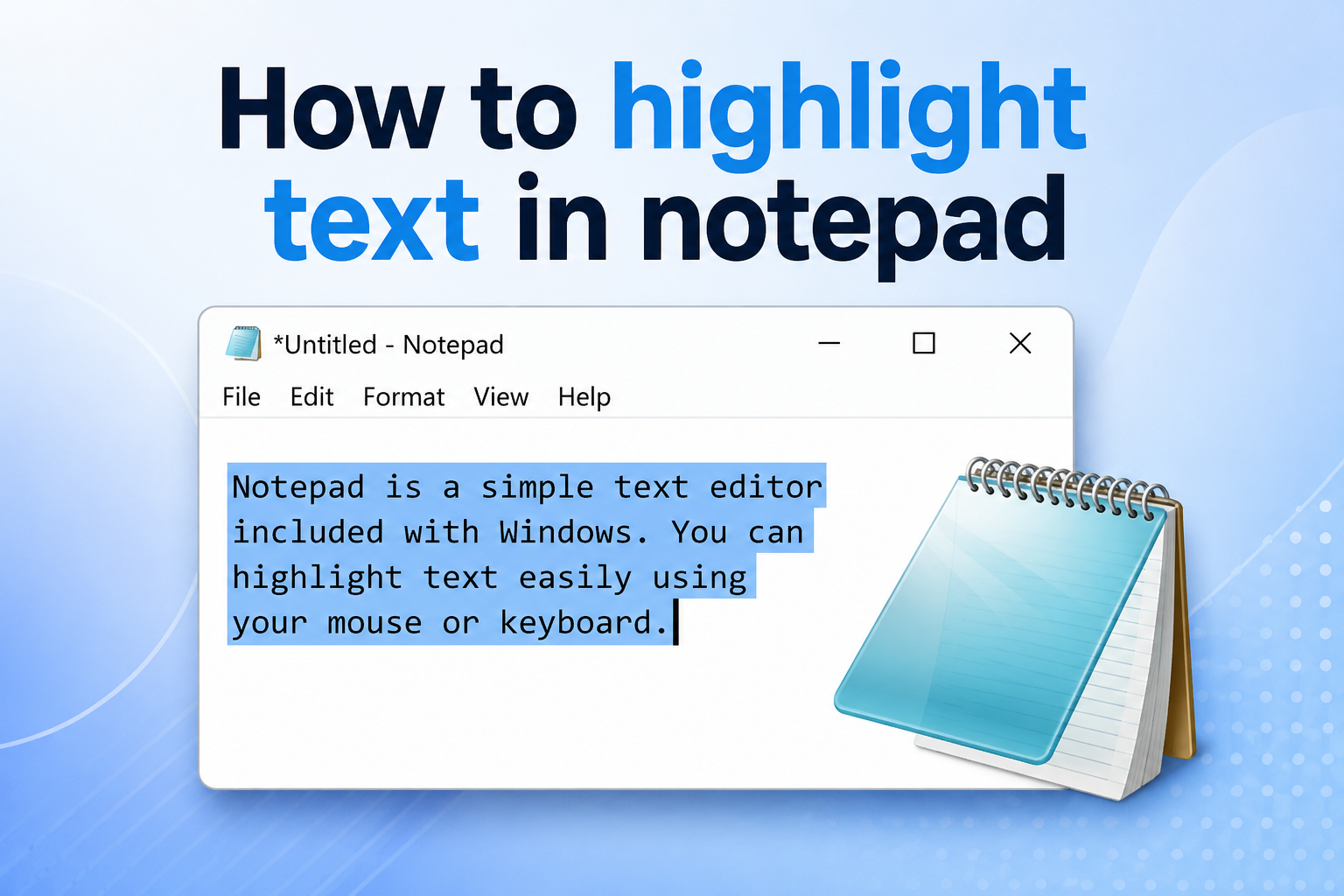
If you are searching for how to highlight text in notepad, the first thing to know is that the answer depends on which Notepad you mean and what you want the highlight to do. Some people want to select text with a temporary blue selection, some want a colored background that stays visible, and others simply want a better way to mark important lines while editing notes, code, or lists. Basic Windows Notepad has traditionally been very simple, so permanent text highlighting has not always been built in the way it is in a word processor. That is why many users feel confused when they try to mark text for review, studying, editing, or sharing. In this guide, you will learn what highlighting means in Notepad, when it is possible, where the limits are, how to use practical workarounds, which mistakes to avoid, and how to choose the best method for your needs.
What Highlighting Text In Notepad Means
Before trying any method, it helps to be clear about what kind of highlighting you actually need in Notepad.
1. Temporary Text Selection
The most basic kind of highlight in Notepad is simple text selection. When you click and drag over words, they appear with a colored selection background. This works well when you want to copy, cut, replace, or review a small part of your text, but the highlight disappears when you click elsewhere.
2. Permanent Visual Marking
Many users really mean a permanent marker effect when they ask how to highlight text in notepad. They want certain words, sentences, or lines to stay visually different after saving the file. Standard Notepad is limited here, because it is a plain text editor and does not store rich formatting such as highlight colors.
3. Search Result Highlighting
Another common meaning of highlighting is when Notepad shows the result of a search. If you use the find feature to look for a word or phrase, the matching text can be selected so you can locate it quickly. This is useful for scanning long notes or editing repeated terms.
4. Line Tracking While Editing
Some people use the word highlight to describe keeping their place while reading or editing. In that case, the goal is not text formatting at all. Instead, they may use line breaks, symbols, uppercase words, or repeated labels to make certain lines stand out inside a plain text document.
5. Syntax Or Feature Based Highlighting
Users who work with code often expect keywords, comments, and strings to appear in different colors automatically. That feature is usually called syntax highlighting. Standard Notepad has not been designed as a full coding tool, so this type of highlighting is usually handled better by more advanced text editors.
6. Attention Marking For Review
Highlighting can also mean marking text for later action, such as proofreading, fact checking, or revision. In plain text, this is often done with brackets, stars, dashes, or labels like NOTE and IMPORTANT. It is not true color highlighting, but it can serve the same practical purpose.
Can You Highlight Text In Notepad
This is the question most readers want answered clearly, and the answer is simple once you separate temporary selection from saved formatting.
1. Standard Notepad Has Basic Selection
In standard Notepad, you can highlight text by selecting it with your mouse or keyboard. This is the normal active selection used for editing. It is helpful for copying, deleting, or replacing content, but it is not stored as part of the file when you save your work.
2. Plain Text Files Do Not Save Rich Formatting
The main reason permanent highlighting does not work in regular Notepad is that plain text files store characters only. They do not keep background color, bold style, font changes, or embedded layout rules. That makes Notepad fast and simple, but it also removes advanced formatting options.
3. Version Differences Can Cause Confusion
Some newer Notepad versions include improved editing features, which can make users assume that highlight tools should also exist. Even when Notepad gets updates, it still remains much simpler than a word processor. That is why you should check the actual menu options instead of assuming a feature is available.
4. Search Can Act Like A Limited Highlight Tool
If your goal is only to find matching words, the search function can behave like a basic highlighter. It brings attention to a term one match at a time and helps with review. However, this still does not create a saved, visible highlight that remains throughout the document.
5. Workarounds Are Often Better Than Forcing It
When a tool is not built for rich formatting, forcing it can waste time. A more practical approach is to use simple symbols, labels, or line spacing in Notepad, or move the content into a different editor when you truly need color based highlighting for editing, studying, or presentation.
6. The Best Method Depends On Your Goal
If you only need to select text for a moment, Notepad already does the job. If you need permanent marking, group review, coding color, or study notes, then your best answer is usually a workaround or a different application. The right solution depends on the exact outcome you want.
How To Highlight Text In Notepad Step By Step
If you want to use the built in selection method, these steps show the fastest and easiest way to do it in daily use.
- Open Your File: Launch Notepad and open the text document you want to review or edit.
- Place The Cursor: Click at the beginning of the word, sentence, or paragraph you want to highlight temporarily.
- Drag To Select: Hold the left mouse button and drag across the text until the full area is selected.
- Use Keyboard Shortcuts: Hold Shift and use the arrow keys if you want more precise control over the selected area.
- Select Larger Sections: Hold Shift and click at another point in the document to select a bigger block of text quickly.
- Take Action On The Highlighted Text: Copy, cut, delete, or replace the selected text while it remains highlighted.
- Repeat As Needed: Click elsewhere to clear the selection, then select another part of the document when you need to review more text.
Ways To Make Text Stand Out In Notepad
Even without permanent color highlighting, you can still make important text easy to notice inside a plain text file.
Use Symbols: Add markers such as stars, arrows, or brackets before important lines so they stand out during scanning. This works well for notes, reminders, and review comments.
Write Short Labels: Labels like IMPORTANT, TODO, FIX, or REVIEW can act like visual highlights. They are simple, searchable, and easy to understand when you reopen the file later.
Separate With Blank Lines: Extra spacing around critical text creates visual emphasis. In a plain text editor, white space often works better than trying to imitate document formatting.
Use Capital Letters Carefully: Writing one short phrase in uppercase can draw attention to a warning or next step. It should be used sparingly so the document does not become noisy.
Group Related Notes: Put urgent or highlighted items in their own small section instead of scattering them across the file. Better structure can be more effective than color alone.
Benefits Of Highlighting Important Text In Notepad
Highlighting, even in a simple or improvised way, has real practical value when you work with plain text every day.
- Faster Scanning: Marked text helps you find key information quickly without rereading the whole document.
- Better Editing: It becomes easier to spot sections that need revision, deletion, or fact checking.
- Improved Focus: Visual emphasis keeps your attention on the most important lines during review.
- Cleaner Collaboration Notes: If you share copied text later, labels and markers can show what needs attention.
- Useful For Study And Planning: Highlight style markers help separate main ideas from supporting details in simple notes.
Best Situations To Highlight Text In Notepad
Not every file needs marked text, but in certain situations, highlighting or its plain text alternatives can save a lot of time.
1. Reviewing Draft Notes
When you are drafting rough ideas, it helps to mark the parts that need expansion, trimming, or rewriting. Temporary selection works during active editing, while labels like TODO or EXPAND can remain in the file for later review when you come back with a fresh perspective.
2. Checking Repeated Terms
If you are editing a list, instructions, or repeated product names, using search and selection can help you verify consistency. This is useful when you want to make sure spelling, wording, or formatting patterns stay uniform across the document without missing any repeated terms.
3. Preparing Simple Study Notes
Students and self learners often use Notepad for quick notes because it opens fast and has few distractions. In that setting, plain text highlights such as stars, headings, and blank lines can help separate definitions, examples, questions, and revision points without needing rich formatting tools.
4. Marking Errors In Raw Text
When proofreading raw content, you may want to flag errors before rewriting them. Highlight style markers let you note where grammar, missing facts, or awkward phrases appear. This is especially helpful when you do not want to edit immediately but still need a visible reminder.
5. Working With Logs Or Data Snippets
People often open logs, copied system messages, or data snippets in Notepad because it strips away clutter. In these cases, highlighting search matches or adding plain text markers can help you isolate suspicious lines, timestamps, or repeated entries during quick troubleshooting.
6. Organizing Personal To Do Text
Many users keep quick personal lists in Notepad because it is lightweight and always available. Marking urgent tasks with symbols, uppercase labels, or separate sections works like highlighting. It helps you spot top priorities instantly without needing a full project management app.
Common Mistakes To Avoid
People often get frustrated with Notepad because they expect it to behave like a richer editor. These mistakes are easy to avoid once you know the limits.
1. Expecting Word Processor Features
The biggest mistake is assuming Notepad works like a document editor with colored backgrounds and saved visual styles. It is mainly designed for plain text. Once you accept that limitation, you can choose faster workarounds instead of wasting time searching for a button that may not exist.
2. Confusing Selection With Saved Highlighting
Selected text looks highlighted on screen, so some users believe that effect will remain after they save the file. It will not. The selection is only temporary for active editing. If you need the mark to stay, use symbols, labels, or a different editor that supports formatting.
3. Overusing Capital Letters
Uppercase text can help emphasize one short warning or note, but using it everywhere creates visual clutter and makes nothing stand out. A file full of all caps is harder to scan and less comfortable to read, which defeats the purpose of trying to highlight important information.
4. Adding Too Many Random Symbols
Markers are useful only when they are consistent. If every line has different stars, brackets, arrows, and punctuation, the document becomes messy. Choose one or two simple markers and use them with a clear purpose so your plain text highlighting system stays readable.
5. Ignoring The Search Feature
Some users manually scroll through long files looking for repeated words or sections they want to review. That is inefficient. Even if Notepad does not offer permanent highlight colors, the search function can still guide your attention quickly and reduce the chance of missing important text.
6. Using Notepad For The Wrong Job
Notepad is excellent for quick plain text work, but it is not the best tool for every task. If your workflow depends on persistent colors, layered notes, coding themes, or collaborative annotations, switching to a more capable editor is usually the smarter and more productive choice.
Best Practices For Highlighting Text In Notepad
A simple system works better than a complicated one when you want text to stand out in a plain text environment.
1. Use One Clear Marking Style
Pick a small, repeatable method such as brackets, stars, or a keyword label. Using the same marker every time makes the document easier to scan and easier to search later. Consistency matters more than creativity when your goal is practical readability and quick recognition.
2. Keep Highlighted Parts Short
Only mark the exact word, phrase, or line that matters. If you label entire blocks of text too often, the emphasis loses value. Short, precise markers help your eye jump to the important point immediately, which is exactly what effective highlighting is supposed to accomplish.
3. Create Search Friendly Tags
Use tags such as TODO, NOTE, CHECK, or UPDATE if you want to find your markers again quickly. This turns your highlighting system into an organizational tool. Instead of merely drawing attention, it also helps you jump through the file efficiently using the find function.
4. Separate Urgent And General Notes
Not every highlighted line needs the same level of importance. You can use one label for urgent actions and another for ordinary reminders. This small distinction makes plain text files much more useful, especially when you revisit them later and need to understand priority at a glance.
5. Review Markers Before Saving Final Text
If your highlighted text is only for drafting or revision, remove the markers before sending or publishing the final content. Temporary notes are helpful during editing, but they can look unprofessional in finished material. A quick cleanup pass prevents that problem and keeps the output clear.
6. Upgrade Tools When Needed
There is no benefit in forcing Notepad to handle tasks beyond its design. If your project grows more complex, move the text into a richer editor with real highlighting support. Good workflow means choosing the simplest tool that still meets the job without creating avoidable friction.
Examples Of Highlighting Text In Notepad
Examples make the idea easier to apply because they show how plain text highlighting can work in real, everyday situations.
1. Marking A To Do Item
If you keep a task list in Notepad, you might place a star before urgent actions. A line such as star plus call client or star plus submit report functions like a visual highlighter. It does not use color, but it instantly separates priority work from ordinary tasks.
2. Flagging A Draft Sentence
When writing an article, you may find a sentence that sounds weak but do not want to stop your flow. Adding a label such as REVIEW before that line helps you continue drafting while keeping the problem visible for later revision. This is a practical editing use of plain text emphasis.
3. Identifying Search Terms
If you are checking whether a product name appears too often, the find tool can temporarily highlight each match. That allows you to move through the file one result at a time and decide whether to keep, replace, or remove each occurrence without manually scanning every paragraph.
4. Organizing Study Notes
Students can place labels like KEY IDEA, EXAMPLE, and QUESTION before certain lines. These labels act like categories and highlights at the same time. When revision day comes, the eye naturally moves to the important parts first, which makes review faster and less mentally tiring.
5. Tracking Simple Code Comments
Someone using Notepad for a small script might add a unique label beside lines that need testing or correction. Even without syntax colors, the file becomes easier to manage because the marked areas are easy to search. This is especially useful during quick troubleshooting sessions.
6. Reviewing Imported Raw Text
When you paste text from another source into Notepad to strip formatting, you may still want to mark weak sections. Using short tags such as CUT, CHECK, or VERIFY helps you review the clean text version without losing track of which sections need attention before final use.
When To Use Another Editor Instead Of Notepad
Notepad is useful because it is fast and simple, but some situations clearly call for something more advanced.
If you need true background color highlighting that stays after saving, a richer editor is the better choice. Plain text is not designed to carry that kind of formatting, so switching tools is often faster than trying to create a workaround for every marked phrase.
If you work with code daily, syntax highlighting alone can justify using a more capable editor. Colored keywords, automatic indentation, line numbers, and search tools reduce errors and speed up review. Those features support productivity in ways that standard Notepad does not try to provide.
If you are studying from large notes, color coding topics may matter more than simplicity. In that case, using a note tool or document editor can improve recall and organization. Notepad remains useful for quick capture, but it is not always the best long term storage format.
If you collaborate with others and need comments, tracked changes, or clearly visible revisions, plain text quickly becomes limiting. Permanent formatting and structured feedback are easier to manage elsewhere. Choosing the right editor can prevent confusion and save time for everyone involved.
If your goal is only quick typing, copy cleanup, or simple lists, Notepad is still a strong option. The key is matching the tool to the task instead of assuming every file should be handled the same way from start to finish.
Frequently Asked Questions
Can I Permanently Highlight Text In Standard Notepad
In most cases, standard Notepad does not permanently save highlighted text the way a word processor does. You can temporarily select text while editing, but that visual effect disappears when the selection is removed. For lasting emphasis, use plain text markers or move the content to a richer editor.
Why Does My Highlight Disappear After I Click Somewhere Else
The highlight you see is usually just the active text selection. It exists only while the text is selected for editing actions such as copying, deleting, or replacing. Once you click elsewhere, Notepad removes that active selection because it is not stored as a permanent formatting choice.
What Is The Best Way To Mark Important Text In Notepad
A practical method is to use simple labels or symbols consistently. Words like NOTE, TODO, CHECK, or IMPORTANT are easy to spot and easy to search. This approach keeps the file clean, works in plain text, and avoids the frustration of trying to force color highlighting into a basic editor.
Can I Highlight Search Results In Notepad
Yes, the find feature can help you locate words or phrases and temporarily bring attention to them. This is useful for checking repeated terms, names, or edits. However, it should be seen as a navigation aid, not as a permanent highlighting system that stays saved in the file.
Is Notepad Good For Studying Or Annotating Notes
Notepad can work well for quick study notes if you prefer a distraction free space and do not need colors or advanced formatting. You can still organize ideas with labels, symbols, and spacing. For heavy annotation, color coding, or long term structured revision, another editor may fit better.
When Should I Stop Using Notepad For Highlighting Needs
You should move to another editor when your workflow depends on persistent visual formatting, clearer code readability, collaborative comments, or layered note organization. Notepad is excellent for simple text tasks, but once highlighting becomes central to the work, a more capable tool is usually the better answer.
Conclusion
Learning how to highlight text in notepad starts with understanding what Notepad can and cannot do. It handles temporary text selection very well, but permanent color highlighting is limited because plain text files do not store rich formatting. That is why simple markers, labels, spacing, and search tools are often the most practical solutions.
The best approach is to match the method to your goal. Use normal selection for quick edits, plain text markers for ongoing review, and a more advanced editor when you need saved visual highlights. Once you work with Notepad on its own terms, it becomes much easier to stay organized and productive.